
Connect a brokerage
FinanceView reads your investments through SnapTrade, a free service for people who look at their own accounts. Here is every screen you see, in order.
Before you start
- What it is: SnapTrade is a separate company that reads your brokerage for us. Wealthsimple, Questrade, and many more work with it.
- Cost: $0. SnapTrade says its Personal plan is free for personal use, with no credit card.
- Time: about 5 minutes, once.
- Have ready: your email and your brokerage login.
- What we read: your holdings, trades, and cash payouts. The link reads. It never trades or moves money.
Same page the Open SnapTrade sign-up button inside FinanceView opens.
STEP 1 Open Connect a brokerage in FinanceView
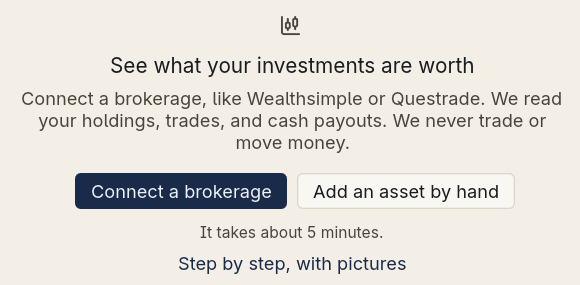
Go to the Investments page and click Connect a brokerage. A window with three steps opens.
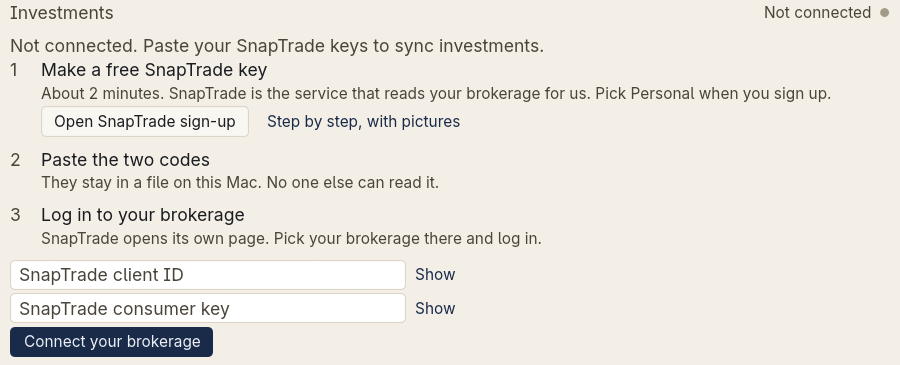
The same three steps sit in Settings, under Bank sync, on the Investments tab.
STEP 2 Click Open SnapTrade sign-up
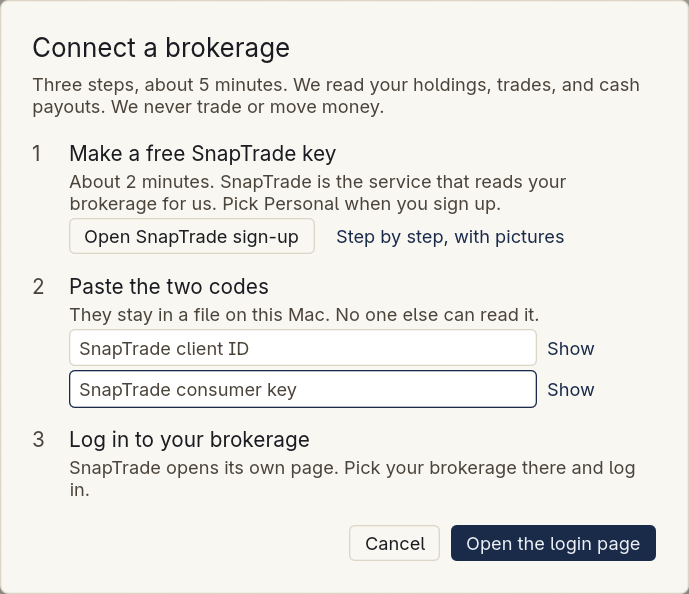
In the window, click Open SnapTrade sign-up. SnapTrade's page opens in your browser. Keep the FinanceView window open. You come back to it in step 6.
STEP 3 Pick Personal and sign up
SnapTrade asks what kind of account you want. Pick Personal and click Continue. Fill in the form and click Sign up.
Then open the email SnapTrade sends you and click its link to confirm your address. No email after a minute? Check spam.
SnapTrade's dashboard then offers its own Connect a brokerage button. You can skip it. FinanceView opens the brokerage login for you in step 7.
STEP 4 Turn on two-step sign-in
SnapTrade wants two-step sign-in turned on before it makes a key. Its key guide lists it as the step before the key.
STEP 5 Make a Personal API key
Open the API Key page in SnapTrade's dashboard and make a Personal key. SnapTrade shows two codes: a client ID and a consumer key. Copy both.
STEP 6 Paste the two codes in FinanceView
Return to the FinanceView window from step 2. Paste the client ID in the first box and the consumer key in the second. Then click Open the login page.
The codes stay in a locked file on your Mac, beside your money file. Nothing goes to iCloud or to us.
STEP 7 Log in to your brokerage
SnapTrade's login page opens in your browser. Pick your brokerage from its list and log in. Your brokerage may text you a code. Answer it the way you always do.
Wealthsimple
You type your Wealthsimple email and password on SnapTrade's page. SnapTrade's Wealthsimple page lists this as a login with your credentials.
Questrade
SnapTrade sends you to Questrade's own login page, and you log in there. SnapTrade's Questrade page lists this as OAuth.
Those two pages are written for companies that build apps. The plan prices on them are for companies. A Personal key costs $0.
Another brokerage? SnapTrade keeps a list of every brokerage it reads.
STEP 8 Come back to FinanceView
Switch back to the FinanceView window. It syncs as soon as you return to it, and your investments fill the Investments page.

Sample data. Your own figures show here.
Add a second brokerage
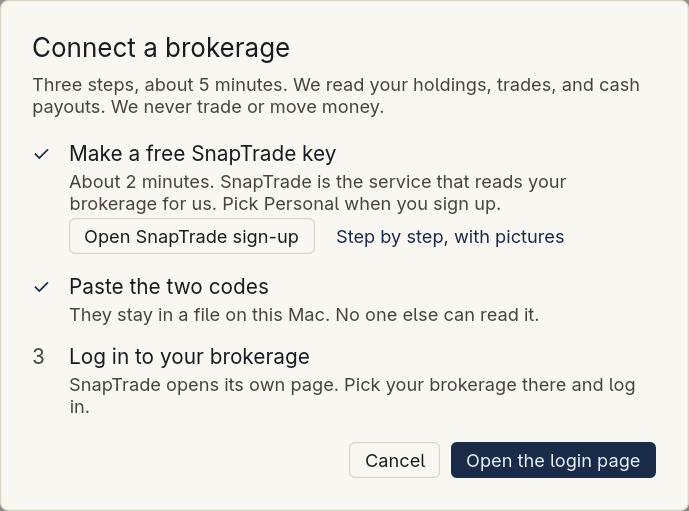
Click Connect a brokerage again. Steps 1 and 2 wear a check, since your codes are saved. Click Open the login page and log in to the next brokerage. SnapTrade's free Personal plan holds up to 20 brokerage logins.
Stuck?
SnapTrade refuses the codes
Copy both codes again from the API Key page. It is easy to miss the ends. Check that you picked Personal in step 3. FinanceView shows SnapTrade's own answer at the top of Settings, Bank sync.
It asks for a code from an earlier setup
This key already holds a login from another app, or from an earlier setup here. Paste the code that setup saved. No code? Make a new key in SnapTrade, then start again at step 6.
A brokerage asks you to log in again
Brokerages end logins from time to time. When one does, the Investments page names the brokerage and the day its prices come from. Click Log in again. SnapTrade opens the login for that same brokerage, and your accounts keep their history.

The status bar at the foot of the window names the brokerage too.
My accounts show no holdings yet
SnapTrade can take a while to read a new login the first time. Wait a few minutes, then open Settings, Bank sync, Investments and click Sync investments. Still empty? Check again after the next nightly read.
More help
- SnapTrade's own setup steps, with their screens
- How SnapTrade keeps a Personal account safe
- Connect your bank, for chequing, savings, and cards
- Download a CSV from your bank, for older history
- Download FinanceView for your Mac